
Step-by-Step Guide to Creating a Bezel Setting in CAD
Master bezel setting design in CAD software with this step-by-step tutorial covering wall thickness, stone seats, and finishing techniques.
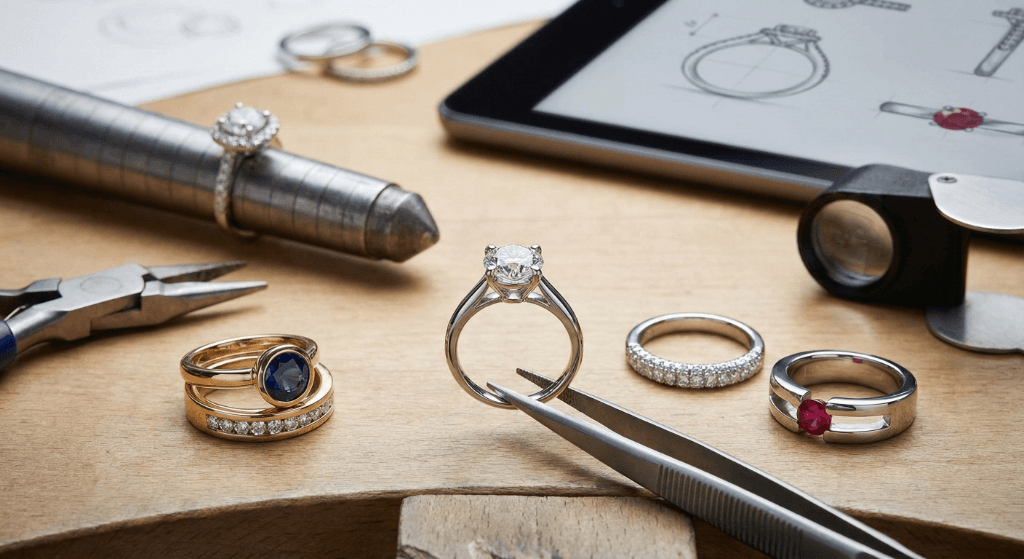
Why Bezel Settings Are the Ideal Starting Point for CAD Jewelry Modeling
A bezel setting wraps a continuous metal rim around a gemstone, creating one of the most protective and visually clean mounting styles in jewelry. Building one in CAD teaches foundational skills that transfer to nearly every other setting type, and this tutorial covers every stage with precise, production-ready measurements.
Whether you are a bench jeweler transitioning to digital workflows or a design student exploring different ring settings for the first time, the bezel is the perfect entry point. Its geometry relies on fundamental CAD operations including offset curves, extrusions, and Boolean subtractions. Once you master these techniques in a bezel context, you will find yourself equipped to tackle more complex constructions like channel settings and pave layouts.
The Gemological Institute of America (GIA notes that bezel settings rank among the most secure stone-mounting methods because the metal rim distributes pressure evenly around the girdle, reducing the risk of chipping or loosening over time (GIA). That structural advantage also makes the bezel a forgiving project for CAD beginners, since the tolerances are more generous than those required for prong-based settings.
Understanding Bezel Setting Anatomy Before You Model
Before opening your CAD software, you need a clear mental picture of every component in a bezel setting. Skipping this conceptual step leads to rework later, because each dimension depends on the one before it. Think of the bezel as a system of interlocking measurements rather than a single shape.
The Bezel Wall
The bezel wall is the vertical metal collar that rises from the base plate and wraps around the gemstone. Its outer surface is what the wearer sees, and its inner surface contacts the stone at the girdle. Wall thickness typically falls between 0.5mm and 1.0mm. Thinner walls create a more delicate appearance but are harder to set by hand, while thicker walls offer more structural margin and are easier to burnish over the stone.
The Stone Seat
The stone seat, sometimes called the bearing, is a ledge cut into the inner wall where the girdle of the gemstone rests. This shelf must be positioned at a precise height so the stone sits level and the crown remains exposed above the bezel rim. For a standard round brilliant cut, the seat depth should place the girdle approximately 0.5mm below the top edge of the bezel wall, leaving enough metal to fold over and secure the stone.
The Base Plate
The base plate is the floor beneath the stone. In a closed-back bezel, this plate is solid and blocks light from entering the pavilion. In an open-back bezel, the plate features a large cutout that allows light transmission. Most modern designs use an open-back approach for transparent faceted stones and a closed-back approach for cabochons or opaque materials.
The Lip
The lip is the portion of the bezel wall that extends above the girdle and eventually gets pushed over the stone during setting. For a secure fit, the lip should project 0.3mm to 0.5mm beyond the girdle edge. Too little lip means the stone can work loose over time. Too much lip covers the crown facets and diminishes sparkle.
Bezel Height Rules by Stone Type
The overall height of the bezel wall varies depending on whether you are setting a faceted stone or a cabochon. For faceted stones, the wall height equals the pavilion depth below the girdle plus the lip height above the girdle. For cabochons, a widely used rule of thumb is that the finished bezel height should equal at least one-third (33%) of the stone's total height. A bezel at 25% of the stone height is generally too short and risks the stone popping out, while 33% or slightly more provides reliable security. For example, a cabochon that stands 6mm tall at its dome peak needs a finished bezel wall of at least 2.0mm. Remember that this measurement refers to the final height after the lip has been burnished over, so model the wall slightly taller to allow for material that folds inward during setting.
Understanding how these parts relate to one another is similar to understanding how technical jewelry drawings communicate proportions. Every measurement references the stone as the central constraint.
Preparing Your CAD Workspace and Stone Library
Proper setup saves hours of frustration later. This section covers the preliminary steps that ensure your bezel model will be accurate and production-ready from the start.
Setting Units and Tolerance
Always work in millimeters. Jewelry CAD demands sub-millimeter precision, and switching between unit systems introduces rounding errors. Set your modeling tolerance to 0.001mm or finer. In Rhino-based environments, this means opening the document properties and adjusting the absolute tolerance before you create any geometry. If you are new to Rhino 3D for jewelry, take a moment to configure these preferences as a template file you can reuse.
Accounting for Casting Shrinkage in Your Model
One detail that many tutorials overlook is casting shrinkage. When a CAD model is printed in castable resin and cast directly, the finished metal piece typically shrinks by 2 to 3 percent compared to the digital file. If the workflow involves creating a rubber mold from a resin master, injecting wax, and then casting, cumulative shrinkage can reach 6 to 8 percent. For bezel settings, where fit tolerances are tight, even a 3 percent reduction on a 6mm stone seat can push the inner diameter below the acceptable range. Many professional casters recommend scaling your CAD model up by the expected shrinkage factor before exporting. For example, if you anticipate 3 percent shrinkage, model the ring at size 6.25 so the final cast piece lands at size 6. Apply the same logic to the bezel inner diameter and stone seat dimensions to ensure the stone still drops in after casting.
Using Bezel Wizards in Jewelry CAD Plugins
Dedicated jewelry plugins such as MatrixGold and RhinoGold include Bezel Studio tools that automate much of the geometry creation. These wizards generate a bezel shape matched to the gem's outline, with adjustable wall thickness, seat depth, and lip height. You can design a bezel for a round stone and then copy its parameter profile onto an oval or cushion gem, and the software recalculates all dimensions automatically. Even if you plan to use these wizards, understanding the manual process described in this tutorial gives you the judgment to evaluate and adjust the automated output. Wizards are starting points, not final answers.
Importing or Creating the Gemstone
Most jewelry CAD platforms include libraries of pre-built gemstone models with accurate facet geometry. Import a calibrated round brilliant stone at the diameter you plan to use. For this tutorial, we will work with a 6mm round brilliant, which is a common size for bezel-set engagement rings and everyday wear pieces. If your software does not include a stone library, model the stone as a simplified cone-and-crown shape using standard proportions from GIA's ideal cut specifications.
Place the stone at the world origin with its table facet facing upward and its culet pointing downward along the Z-axis. This orientation simplifies every subsequent operation because all your offsets and extrusions will reference the XY plane at the girdle height.
Keep in mind that calibrated gemstones carry their own manufacturing tolerances, typically plus or minus 0.1mm on diameter. A stone sold as 6mm may actually measure anywhere from 5.9mm to 6.1mm. Bezel settings are far more sensitive to these variations than prong settings. Industry guidance from Kernowcraft suggests that prong settings can accommodate up to 10 to 20 percent size variation, while bezel settings become difficult to work with beyond 5 percent. Always measure your actual stone with digital calipers before finalizing the CAD model, and if you are designing for production runs with multiple stones, build your bezel to fit the maximum expected stone diameter plus clearance rather than the nominal size.
Creating Construction Layers
Organize your workspace using dedicated layers. A clean layer structure prevents confusion when the model becomes more complex.
| Layer Name | Contents | Color Suggestion |
|---|---|---|
| Stone | Gemstone geometry, locked after placement | Blue |
| Bezel Wall | Main bezel collar and lip | Gold or Yellow |
| Base Plate | Bottom surface and cutout | Green |
| Stone Seat | Bearing shelf and clearance gap | Red |
| Shank | Ring band, if applicable | Gray |
| Construction | Reference curves and helper geometry | Magenta |
Lock the Stone layer immediately after positioning the gem. You do not want to accidentally move or modify it during modeling, because every other dimension derives from its position.
Building the Bezel Wall Step by Step
This is the core of the tutorial. Follow these steps in order, and check your dimensions at each stage before moving on.
Step 1. Extract the Girdle Outline
Select the gemstone and extract a curve at the girdle plane. In Rhino, you can use the Section command with a plane set at the girdle height, or use DupEdge to duplicate the girdle edge directly. For a 6mm round brilliant, this curve will be a circle with a diameter of approximately 6.0mm. Verify the diameter by measuring across the curve. If you imported a calibrated stone, the girdle should match the nominal size within 0.01mm.
Step 2. Add Stone Clearance
Offset the girdle curve outward by 0.15mm. This creates the inner wall profile and accounts for manufacturing tolerance. The resulting circle for our 6mm stone will have a diameter of 6.30mm. This small gap ensures the stone drops into the bezel without requiring force, which matters during hand setting when the jeweler needs to position the stone before burnishing the lip.
Step 3. Create the Outer Wall Profile
Offset the clearance curve outward by an additional 0.7mm to define the outer wall surface. For a gold bezel around a 6mm stone, 0.7mm wall thickness provides excellent strength without appearing bulky. The outer diameter now measures 7.70mm. If you plan to work in sterling silver, increase this offset to 0.8mm or 0.9mm because silver requires extra material to resist deformation.
| Metal | Recommended Wall Thickness | Outer Diameter for 6mm Stone |
|---|---|---|
| 18k Yellow Gold | 0.6mm to 0.7mm | 7.50mm to 7.70mm |
| 14k White Gold | 0.7mm to 0.8mm | 7.70mm to 7.90mm |
| Platinum | 0.5mm to 0.6mm | 7.30mm to 7.50mm |
| Sterling Silver | 0.8mm to 1.0mm | 7.90mm to 8.30mm |
These values assume a standard round brilliant. Fancy-shaped stones like ovals and marquises need slightly thicker walls at the pointed ends to prevent cracking during the setting process.
For those translating between CAD measurements and traditional bezel wire stock, the common equivalents are helpful to know. A 26-gauge bezel strip measures approximately 0.41mm thick, which sits at the absolute minimum for fine gold work. Most jewelers prefer 24-gauge (0.51mm) or thicker for reliable hand setting. In CAD, modeling the wall at 0.7mm for gold is effectively designing for a strip thicker than 22-gauge (0.64mm), which provides a comfortable margin for burnishing without risk of cracking.
Step 4. Extrude the Wall
Select both the inner and outer curves and extrude them vertically. The total wall height depends on the stone's crown height plus the depth of the pavilion that sits within the bezel. For a 6mm round brilliant with standard proportions, the pavilion depth below the girdle is approximately 2.4mm, and you want the wall to extend about 1.0mm above the girdle to form the lip. That gives a total extrusion height of roughly 3.4mm.
Use a closed planar extrusion if your software supports it, creating a hollow cylinder in one operation. Otherwise, extrude each circle separately and use Boolean Difference to subtract the inner cylinder from the outer one.
Step 5. Cut the Stone Seat
The stone seat is a horizontal ledge inside the wall where the girdle rests. To create it, draw a rectangle profile on a cross-section plane through the wall. The seat should be 0.3mm deep (cutting into the inner wall surface) and positioned so the top of the seat aligns with the girdle plane. Revolve this rectangle around the center axis to create a ring-shaped groove, then use Boolean Difference to cut it from the bezel wall.
After cutting the seat in CAD, consider how the physical seat will be refined at the bench. Jewelers typically use a setting burr matched to 99 to 100 percent of the stone's diameter to clean up the seat and ensure a precise angle. For a 6mm round brilliant, that means a 6.0mm setting burr. The progressive approach at the bench starts with a bud or ball burr at roughly 75 percent of the stone diameter (4.5mm) to rough out material, then switches to the full-size setting burr for the final seat angle. Modeling the seat in CAD at the correct depth and angle reduces the amount of hand finishing required and improves consistency across production runs.
After cutting, verify that the stone sits on the seat with its girdle flush against the ledge and its crown rising above the bezel lip by approximately 0.5mm. If the crown sits too high, the lip will not reach over the stone during setting. If it sits too low, the lip will cover too many crown facets.
Designing the Base Plate and Open-Back Cutout
The base plate closes the bottom of the bezel and provides structural continuity with the ring shank. Its design affects both the structural integrity of the setting and the amount of light reaching the pavilion.
Creating a Solid Base
Start by drawing a circle at the bottom of the bezel wall that matches the outer wall diameter of 7.70mm. Extrude this circle downward by 0.8mm to create a flat disc. Then use Boolean Union to merge the disc with the bezel wall, forming a single closed solid.
Adding the Open-Back Window
For faceted transparent stones, an open-back design dramatically improves brilliance. Draw a circle centered on the stone's culet position with a diameter of 4.5mm to 5.0mm. This leaves a supporting rim of approximately 1.35mm to 1.6mm around the opening. Extrude this circle through the base plate and use Boolean Difference to remove it.
The opening diameter is a balance between light entry and structural strength. A larger opening allows more light but weakens the base. For engagement rings and pieces subject to daily wear, keep the opening at least 1.0mm smaller than the stone diameter. For pendants and earrings that experience less mechanical stress, you can increase the opening to within 0.5mm of the stone diameter.
Closed-Back Considerations for Cabochons
If you are setting a cabochon, an opaque stone, or a soft material like opal or turquoise, use a fully closed base. Cabochons rely on reflected body color rather than transmitted light, so blocking the back has no optical penalty. The closed base also provides a flat surface for epoxy if needed. When working with bezel-set engagement rings, the choice between open and closed back depends entirely on the stone type and the wearer's priorities.
Connecting the Bezel to a Ring Shank
A standalone bezel cup is useful for pendants and earring components, but most bezel settings in rings need to flow seamlessly into the shank. This connection point is both a structural junction and an aesthetic transition, and getting it right requires attention to curves and fillet radii.
Positioning the Bezel on the Shank
Create or import a simple half-round shank with a width of 2.5mm and a thickness of 1.8mm. Position the bezel cup on top of the shank at the 12 o'clock position, centered on the shank's midline. The bottom of the bezel base should sit flush against the top surface of the shank. If there is a gap, adjust the bezel's vertical position until the surfaces make contact.
Boolean Union and Filleting
Use Boolean Union to merge the bezel and shank into one solid. The junction will initially show a sharp crease where the two surfaces meet. Apply a fillet of 0.5mm to 0.8mm along this junction to create a smooth, organic transition. The fillet radius affects the perceived weight of the design. A smaller radius yields a more architectural, angular look. A larger radius creates a softer, more fluid appearance.
Run a mesh analysis or curvature check after filleting. Look for any self-intersecting surfaces or naked edges, which indicate geometry errors that will cause problems during 3D printing or casting. Repair these before proceeding, as they compound during later operations.
Adapting for Fancy Stone Shapes
Oval, cushion, and marquise stones require a bezel profile that follows the stone's outline rather than using a simple circle. The modeling steps remain the same, but the offset curves become more complex. Pay special attention to the corners and tips of elongated shapes. The wall thickness at pointed ends should be at least 0.2mm greater than the sides, because these areas experience the most stress during setting.
When calculating the perimeter of the bezel wall for fancy shapes, standard formulas help verify your CAD geometry. For a round stone, multiply the diameter by pi (3.14159) and then add twice the wall thickness times pi to get the outer circumference. For oval stones, a practical workshop formula is to add the length and width, divide by two, and multiply by 3.5 (a rounded-up version of pi that accounts for the elliptical shape). For example, an 8mm by 6mm oval gives (8 + 6) / 2 x 3.5 = 24.5mm as the inner bezel perimeter. A more precise mathematical approach uses the Ramanujan approximation for ellipse perimeter, but the simplified formula is accurate enough for most jewelry work, staying within 2 percent of the true perimeter. Always add an allowance of 0.5mm to 1.5mm to account for the metal's own thickness when translating these numbers to physical bezel strip lengths.
If you are curious about how different setting styles compare in terms of structural demands, our guide to prong versus bezel settings explores the engineering differences in detail.
Finishing the Surface and Adding Design Details
Once the structural geometry is complete, surface finishing transforms a functional model into a polished, production-ready design. This stage is where personal style enters the process.
Smoothing the Outer Wall
Apply a slight taper to the outer wall so that it narrows from base to lip. A taper angle of 3 to 5 degrees creates a subtle visual lift without weakening the wall. In CAD, you can achieve this by drawing a tapered cross-section profile and revolving it rather than using a straight extrusion. Alternatively, use the Draft Angle tool if your software includes one.
Milgrain and Texture Effects
Milgrain is a row of tiny beads applied along the top edge of the bezel. It adds a vintage, handcrafted character to the setting. In CAD, model milgrain by creating a small sphere of 0.2mm to 0.3mm diameter, arraying it around the bezel circumference, and using Boolean Union to merge the beads with the lip. For a 6mm stone with an outer bezel diameter of 7.70mm, the circumference is approximately 24.2mm. Spacing the beads at 0.4mm intervals gives about 60 beads around the rim.
Hammered, brushed, and sandblasted textures are typically applied to the physical piece after casting rather than modeled in CAD. However, if you want to visualize these finishes during the design approval stage, apply a displacement map or bump texture to the render material.
Engraving and Personalization
The outer bezel wall provides a flat or gently curved surface ideal for engraving. If the client requests initials or a date, model the text as embossed or debossed geometry on the outer wall. Use a font height of at least 1.2mm for legibility after casting. Smaller text tends to fill in during the investment burnout process and becomes illegible.
For designers who want to explore signet ring design techniques, many of the same engraving principles apply to bezel surfaces, since both involve working with flat or shallow-curved metal planes.
Validating Your Model for Production
A model that looks correct on screen can still fail in production if it violates casting or printing constraints. This validation step catches issues before they become expensive mistakes.
Minimum Thickness Check
Run a thickness analysis across the entire model. No section should be thinner than 0.4mm for lost-wax casting in gold, or 0.3mm for direct metal printing. The most common trouble spots in a bezel setting are the lip, the stone seat ledge, and the base plate around the open-back cutout. If any area falls below the minimum, go back and increase the relevant offset or extrusion dimension.
| Production Method | Minimum Wall Thickness | Minimum Detail Size |
|---|---|---|
| Lost-Wax Casting in Gold | 0.4mm | 0.3mm |
| Lost-Wax Casting in Silver | 0.5mm | 0.4mm |
| Direct Metal Laser Sintering | 0.3mm | 0.2mm |
| Resin 3D Print for Prototype | 0.25mm | 0.1mm |
Checking for Non-Manifold Geometry
Non-manifold edges, naked edges, and self-intersections prevent clean 3D printing slicing. Use your CAD platform's mesh repair tools to identify and fix these issues. In Rhino, the ShowEdges command with "Naked Edges" selected highlights any open boundaries. Every solid in your model should register as a closed polysurface with zero naked edges.
Stone Fit Verification
Hide all layers except the stone and the bezel wall. Rotate the view to examine the relationship from every angle. Confirm these critical measurements.
The inner wall clearance gap should measure 0.15mm uniformly around the stone. The stone seat should contact the girdle without intersecting the pavilion facets. The lip should extend 0.3mm to 0.5mm above the girdle, measured horizontally from the inner wall toward the stone center. The crown should remain visible above the lip, with at least the upper crown facets and table fully exposed.
If any measurement falls outside tolerance, adjust the corresponding feature and re-check. It is far better to spend ten extra minutes refining the model than to discover a fitting problem after the piece has been cast.
Weight Estimation
Use your CAD software's mass properties tool to calculate the volume of the metal body. Multiply by the density of your target metal to estimate weight. For reference, 18k yellow gold has a density of approximately 15.6 grams per cubic centimeter, 14k yellow gold is approximately 13.1 grams per cubic centimeter, platinum is approximately 21.4 grams per cubic centimeter, and sterling silver is about 10.4 grams per cubic centimeter. Knowing the weight helps you quote material costs accurately and ensures the finished piece meets the client's expectations for heft and comfort.
Quality Control Checkpoints for Bezel Settings
Bezel settings are among the most precision-sensitive components in jewelry manufacturing because the smooth, minimal metal surface makes every imperfection visible. After casting or printing, inspect the bezel rim for evenness around the entire circumference. The rim should be uniform to within 0.05mm in height variation. Check that the inner wall is smooth and free of porosity or pitting, since rough spots inside the bezel can scratch the stone during setting. Verify that the finished bezel edge is polished and free of burrs, as any rough spot will be felt by the wearer. For production runs, consider creating a go/no-go gauge from a master stone to quickly test each cast bezel for proper fit before sending pieces to the setter.
Common Mistakes and How to Avoid Them
Even experienced CAD modelers encounter recurring issues when building bezel settings. Recognizing these pitfalls in advance saves significant rework time.
Forgetting Stone Clearance
The single most common error is modeling the inner wall directly against the stone dimensions without adding the 0.1mm to 0.2mm tolerance gap. This produces a bezel that is technically the correct size on screen but impossible to set in real life. The stone simply will not drop in. Always offset outward from the girdle curve before building the wall.
Making the Lip Too Thin
A lip thinner than 0.3mm is nearly impossible to burnish over the stone without cracking, especially in white gold or platinum alloys that work-harden quickly. If the lip cracks during setting, the entire piece needs re-mounting. Keep the lip generous and let the setter reduce material with a graver if needed.
Ignoring Fillet Radii at Junctions
Sharp internal corners concentrate stress and create weak points that can crack under pressure. Every junction between the bezel wall, base plate, and shank should have a fillet of at least 0.3mm. This small curve distributes force more evenly and also improves the flow of molten metal during casting, reducing porosity in the finished piece.
Overcomplicating the Profile
New CAD users sometimes add unnecessary curves, chamfers, or decorative elements to the bezel profile before mastering the basic proportions. Start with a straight-walled, flat-topped bezel. Get the fit and dimensions perfect. Then add design details incrementally, verifying the fit after each addition. A simple bezel that sets perfectly is far more valuable than an ornate one that fails at the bench.
Neglecting the Gallery View
The gallery is the side profile of the setting visible when the ring is viewed from the side. Many designers focus exclusively on the top view and forget that the gallery is equally important to the overall aesthetic. Examine your model from a 90-degree side view. The wall should taper gracefully from base to lip. The transition into the shank should flow without awkward steps or discontinuities. If you have studied visual identification of ring settings, you know that the gallery profile is often what distinguishes a professional design from an amateur one.
Exporting and Preparing Files for Production
With your validated model complete, the final step is exporting files in the formats your manufacturer or 3D printer requires.
STL Export Settings
For 3D printing, export an STL file with a maximum deviation of 0.01mm and a maximum angle of 5 degrees. These settings produce a mesh dense enough to capture the smooth curves of the bezel without creating an unnecessarily large file. Check the file size after export. A single bezel ring should be between 5MB and 20MB. If the file is much larger, reduce the mesh density slightly. If it is under 2MB, increase the density to avoid visible faceting on curved surfaces.
Preserving the Parametric File
Always save a native format file alongside the STL. This preserves the construction history, layers, and parametric relationships so you can modify the design later without starting from scratch. If a client requests a different stone size or metal type, you can adjust the relevant parameters and regenerate the bezel rather than remodeling it entirely.
Rendering for Client Approval
Before sending files to production, create a photorealistic render showing the bezel setting from at least three angles, specifically the top view, a three-quarter view, and a side profile. Apply accurate metal materials and environment lighting. This render serves as the visual contract between you and your client, confirming that the design matches expectations before any material is committed. AI rendering tools, including those discussed in our overview of AI jewelry design software, can accelerate this step significantly.
Documentation Package
Include a technical drawing with key dimensions labeled. At minimum, annotate the stone diameter, bezel wall thickness, bezel height, base plate thickness, open-back diameter, and overall ring dimensions. This documentation ensures that any jeweler who receives the file can verify the design intent without reverse-engineering the model. For a deeper understanding of what these technical documents communicate, refer to our guide on reading jewelry technical drawings.
Moving Beyond the Basic Bezel
Once you are comfortable building a standard full bezel for a round stone, the natural next steps include experimenting with partial bezels, tube settings, and bezels for fancy shapes. Each variation builds on the same foundational techniques covered in this tutorial but introduces additional complexity in curve management and surface transitions.
Partial bezels, where the metal rim covers only two or four segments of the stone perimeter, require careful engineering to ensure the exposed sections do not compromise stone security. The metal segments must be thick enough and tall enough to hold the stone firmly, even though they do not form a continuous collar. This style works particularly well for stones with high brilliance, where maximizing light entry is a priority.
Tube settings are essentially miniaturized bezels used for small accent stones in the 1.5mm to 3.0mm range. They follow the same wall-and-seat logic but at a scale where every tenth of a millimeter matters. Modeling tube settings in CAD teaches precision that benefits all your future work.
For designers interested in pushing creative boundaries, the bezel can be integrated with sculptural band designs, mixed-metal constructions, and asymmetric compositions. The fundamental principle remains constant. Build outward from the stone, respect manufacturing tolerances, and validate every dimension before sending to production. These habits, practiced first on a simple bezel, will serve you throughout your entire career in jewelry CAD.
Explore Bezel Setting Designs with Tashvi AI
Before diving into CAD, use Tashvi AI to rapidly explore bezel setting concepts with AI design. Visualize different stone shapes, metal types, and bezel styles in photorealistic renders. Perfect for brainstorming before you open your CAD software.
Frequently Asked Questions
Quick answers to the questions readers ask most about this guide.
What is a bezel setting in jewelry design
A bezel setting is a metal rim that wraps completely or partially around a gemstone to hold it in place. The metal collar rises from the base and folds over the stone's edge, creating a secure and sleek mounting style that protects the gemstone from impacts.
How thick should a bezel wall be
Standard bezel wall thickness ranges from 0.5mm to 1.0mm depending on the metal and stone size. For gold, 0.7mm works well for stones under 8mm. For silver, use at least 0.8mm because silver is softer. Thinner walls allow more light but reduce structural strength.
Can beginners create bezel settings in CAD
Yes. Bezel settings are one of the most beginner-friendly settings to model in CAD because the geometry involves basic shapes like cylinders and offsets. Most jewelry CAD programs include bezel-building wizards that automate the core measurements and proportions.
What is the difference between a full bezel and a partial bezel
A full bezel wraps metal completely around the gemstone perimeter. A partial bezel, also called a semi-bezel or half-bezel, covers only portions of the stone, leaving sections exposed. Partial bezels allow more light entry and create a more open, contemporary aesthetic.
How do you account for stone tolerances in a CAD bezel
Add 0.1mm to 0.2mm clearance between the stone dimensions and the inner bezel wall to account for manufacturing tolerances. This gap ensures the stone fits without forcing. The bezel lip that folds over the stone should extend 0.3mm to 0.5mm beyond the girdle.