Introducing Plan: Approve the Brief Before Tashvi Draws It
Plan shows you the brief Tashvi will send to the image model before anything is generated. Answer a few quick questions, correct the brief in words or by hand, and press Craft when it reads right. Planning is free for every Tashvi account.
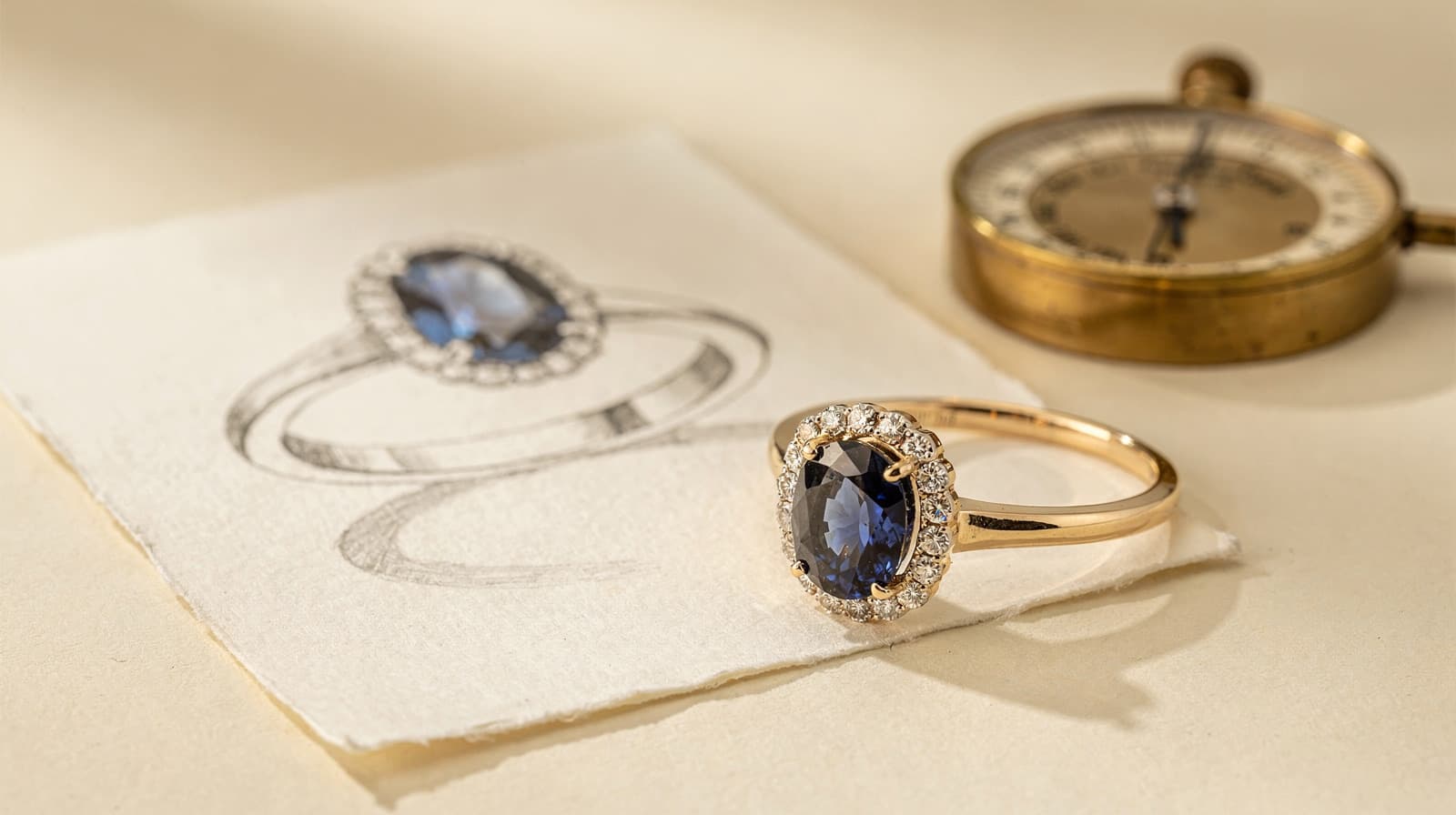
You ask for an elongated oval. The ring comes back with a plain oval.
Between your words and the image, Tashvi writes a detailed brief for the image model: the stone, the setting, the metal, how the piece is lit and photographed. Most of the time that brief is right. When it is not, you used to find out after the design was drawn and the credits were spent.
Plan shows you the brief first. Turn it on, describe the piece, read how Tashvi understood it, and fix anything it got wrong. When it reads right, press Craft. You pay once, for a design drawn from a brief you approved.
What Plan is
Plan is a mode on Create. With it on, sending a message does not draw anything straight away. Tashvi reads your request and shows the brief it would send, under the heading Here's how I read it.
The brief has two parts: the design itself, then how it will be staged, lit and photographed. The card puts it plainly: this is what the image model gets.
Turning it on
Open the + menu in the composer and choose Plan. A Plan pill appears beside the + button. Press its × to leave.
You can also say so in words. With Concepts off, type "let's plan it first" and Tashvi switches Plan on and plans that request.
Plan stays on while you work on the page, and New chat turns it off. It is one mode at a time: choosing Ask, Variations or Batch leaves Plan, and choosing Plan leaves them.
How a plan works
- Describe the piece. Your message appears in the chat, and a plan card starts Reading your brief… under it.
- Answer a few quick questions. For a new piece started from scratch, Tashvi may ask up to three questions first. Each one offers two or three named choices, like "Sapphire" rather than "a gemstone," with a one-line note on what each means. Usually one is tagged Recommended. Something else lets you type your own answer, and every question can be skipped.
- Read the brief. The card shows how Tashvi read your request. Edit the text directly, or type a change in the composer: "make the shank tapered," "the halo should be pavé, not a single row." The card updates in place and keeps anything you edited by hand.
- Ask about it. A question like "why four prongs?" is answered in the chat, and the plan stays as it was.
- Press Craft. Tashvi draws the design from the approved brief, with the quality, aspect ratio and style already set in your composer. If Concepts is on, every concept comes from the same approved brief.
After the design is drawn, a collapsed line under it shows the plan it came from. Your next change builds on that corrected brief, not on the first reading.
Questions that earn their place
The questions are there to settle what your request left open, not to make you fill in a form.
Tashvi is built not to ask about something you already said, or anything your saved preferences already settle: if you always work in 18k yellow gold, it should not ask about the metal. It leaves sizes, carat weights, budget and deadlines to you, and it skips yes-or-no questions.
Questions come only when you are starting a piece from nothing. If you attach a reference image, or you are changing a design already on the canvas, Tashvi goes straight to the brief.
When Plan steps aside
Some turns already say exactly what should change, so they go straight through:
- Edits to a part you selected, with Segments or a drawn selection.
- Vary, Guided design and variations of a design.
- The Generate variations and Create a video of this suggestions.
- With Auto off, a pinned model that reads the conversation directly. There is no brief to show, so the turn is sent and charged as usual.
If Tashvi cannot prepare a brief for a request, the card says so and offers Craft as written, so you are never stuck. If a request cannot be generated at all, the card tells you before anything is charged, and there is no Craft button.
Plan, skills and memory
Plan uses what Tashvi already knows about how you work. The skills you pick with / shape both the brief and the questions, and a skill you pick while a plan is open applies to the next version of it. Your saved preferences are read too, which is why Plan does not ask what you have already settled.
What it costs
Plan is available to every Tashvi account, free accounts included.
Reading your request, asking questions and changing the plan are all free. You are only charged when the design is drawn, with Craft or Craft as written, at the same price as sending it without a plan. Tashvi checks your credits before it plans, so you will not refine a brief you cannot then draw.
Try it
Open Create, choose Plan from the + menu, and describe a piece you have had trouble getting right. Something with a detail that tends to get lost, like "an elongated oval sapphire on a knife-edge band with a hidden halo."
Read the brief. Change one thing in words. Then press Craft, and see the piece you described.
The Plan guide covers the questions, the plan card, and every case where Plan steps aside.