Introducing Skills: Teach Tashvi How Your Studio Works
Write down a bench process once, like how you build a plain gold bangle or your finishing rules, and Tashvi follows it step by step on every design you pick it for. Skills are on every plan and cost no credits.
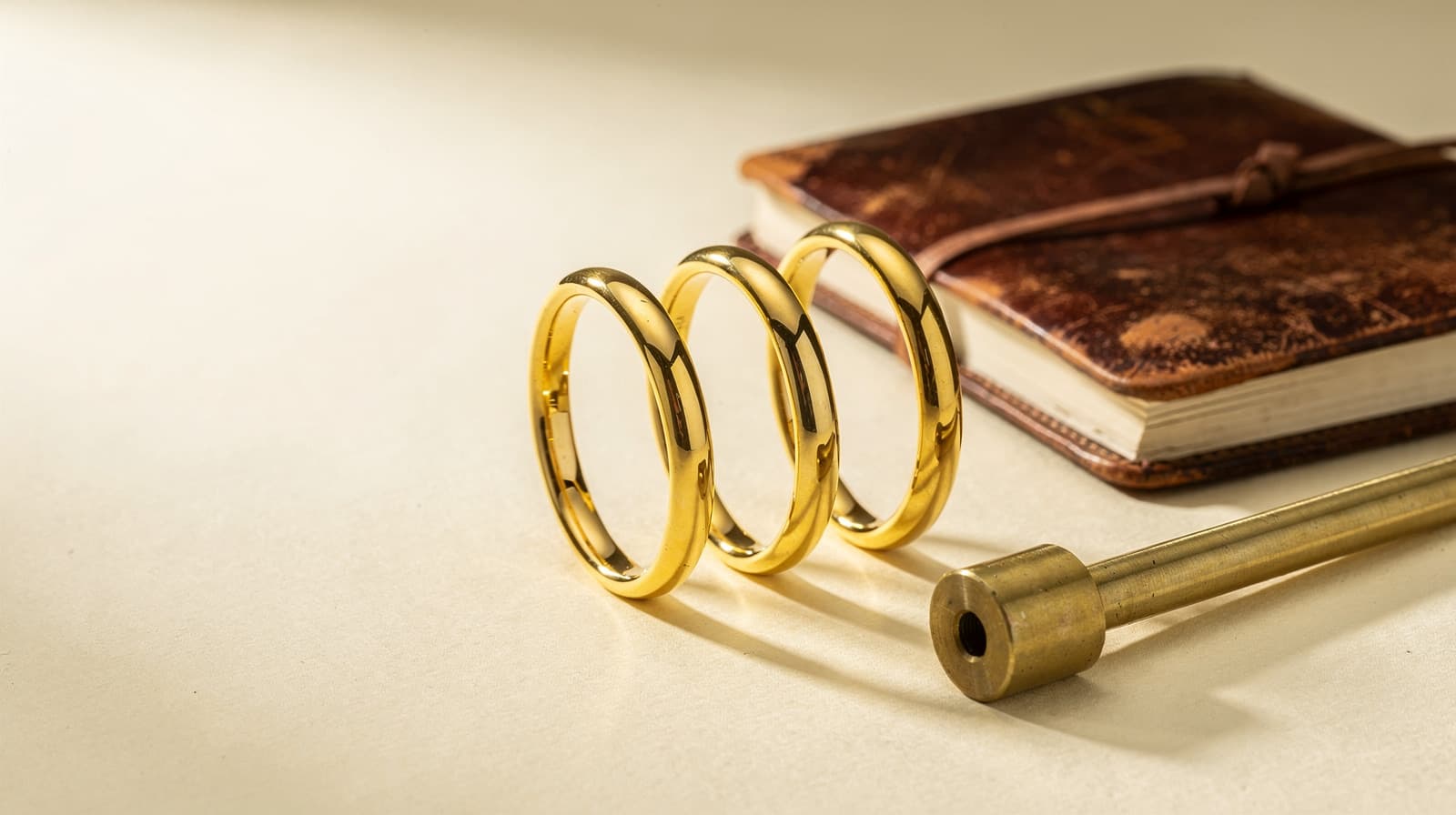
Every studio has rules nobody writes down. Plain bangles are 18k with a comfort-fit inner edge. Halo stones sit on a knife-edge gallery. Every piece gets a high polish outside and a satin finish inside.
Until now, getting those rules into a design meant typing them again, in every chat, for every piece. And the one time you forgot, the design came back in the wrong finish.
Skills fix that. Write a process down once, give it a name, and Tashvi follows it step by step on any design you pick it for. Type / in the Create composer and your skills are there.
What a skill is
A skill is a process: how your studio does something. It is short, it has steps, and it has a name you can type.
That makes it different from memory. Tashvi already remembers things about you, like the metals you reach for. A skill is not a preference Tashvi picked up along the way. It is a method you taught it on purpose, so when you pick one, it outranks what Tashvi has remembered. Only the request you are typing right now wins over it.
Each skill holds:
- A name and a handle. "Plain gold bangle" is the name.
/gold-bangleis what you type. - When to use it. One line, such as "any halo ring, in any metal."
- Steps. The process itself, kept short enough to follow every time.
- Always on. Optional. Applies the skill to every design without picking it.
- Enabled. Switch a skill off to keep it saved without using it.
Three ways to make one
Talk it through on Create
Type /skill-creator in the Create composer. Tashvi opens with two quick questions: which pieces the process covers (rings, necklaces and pendants, earrings, or every piece), and what it should control (metal and karat, stones and settings, finish and texture, or construction and weight). Tap the answers that apply.
It may ask one more short round, each question with one-click answers plus Something else and Skip. Then it writes the skill and shows you a draft.
The draft card has a Things to check list. If the draft contains a detail you never gave it, such as a karat or a measurement, it is flagged there so you can correct it before saving. Ask for changes in plain words, like "make step 3 shorter." Nothing is saved until you press Save skill, and Use it now picks it for your next design.
Describe it in Settings
Open Settings, choose Skills, and press New skill. Describe your process in your own words, press Create skill, and Tashvi fills in the name, handle, when-to-use line and steps. Every field stays editable before you save.
Prefer to type it all yourself? Choose Write it yourself.
Import a SKILL.md file
Skills are standard SKILL.md files, the open format other AI tools already use for skills. Import SKILL.md in Settings brings one in. Download SKILL.md on any skill takes it out.
That is also how you share a skill with a colleague today: download it, send the file, and they import it.
Using a skill on Create
- Type
/as the first character in the composer. Your skills are listed, along with the built-in skill-creator. Keep typing to filter, then press Enter. - The skill appears as a blue token, like
/gold-bangle, at the start of the composer. Hover it to see what it is for. - Describe the design the way you already do: "a 6mm bangle with a twisted rope edge."
- Check the reply. Under the response, Applied: names the skills that were actually used on that design, so you always know what shaped it.
A picked skill stays on while you work, across new designs and follow-up edits, until you remove it. Backspace at the start of the composer takes the last token off.
You can use up to two skills on a design: a process plus a house rule, for example. Skills you pick come first. Always on skills fill any slot that is left.
Where skills apply, and where they step aside
- New designs and edits. A picked skill shapes the first design and every follow-up you send while it is on.
- Plans. With Plan on, your skills shape the brief and the questions Tashvi asks before it draws.
- Not on a selected part. When you edit a part you selected, with Segments or a drawn selection, skills are left out. A selection means "change only this," and Tashvi keeps it that way.
- Not in a private chat. Incognito chats do not use your skills.
- Only when you choose. Tashvi does not guess which skill fits a request. A skill applies when you pick it or when you set it to Always on.
What it costs
Skills are available on every Tashvi plan, including Free.
Creating, drafting, importing and downloading a skill costs no credits. Using one adds nothing to the credits a design already costs.
You can keep up to 50 skills. For now, each one belongs to your account alone.
Try it
Pick the process you explain most often. Open Create, type /skill-creator, and describe it the way you would to a new jeweler on their first day at the bench. Save it, pick it, and ask for a piece.
Then ask for another. The rules should hold without you repeating them.
The Skills guide covers every field, the SKILL.md format, and what to do when a skill is not applied.